What Is Git, And How Is It Different From GitHub Or GitLab? Git vs. GitHub
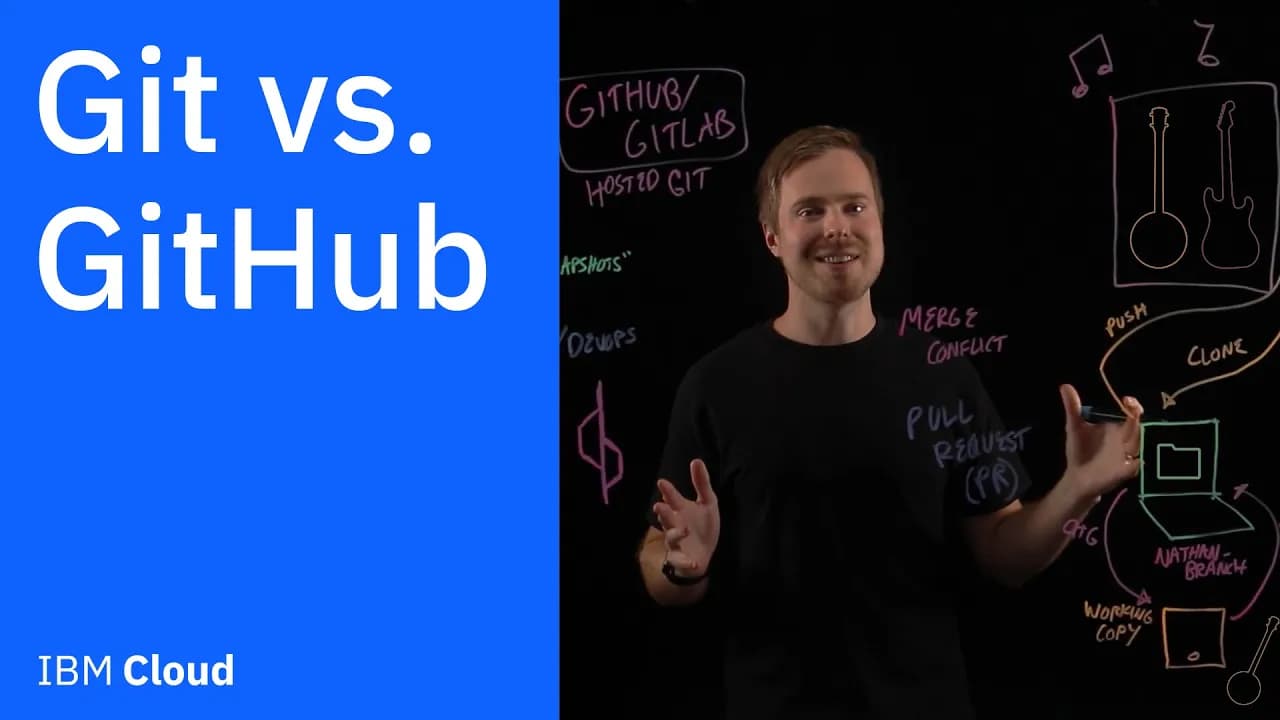
What is Git and how it differs from GitHub or GitLab comes up all the time, and this is the easiest way to explain it.
Git is a version control system that runs on your computer and tracks every change in your code as snapshots so you can branch, experiment, and always go back. GitHub and GitLab are cloud platforms that host Git repositories and add collaboration features like pull requests, code reviews, issues, permissions, and CI pipelines. You use Git locally to commit and manage history, then push to GitHub or GitLab so your team can work together, review changes, and merge safely. Together they let multiple developers work on the same project at the same time without stepping on each other, while keeping a clean history you can trust.
What Is Git In Plain English?
Think of Git like the most reliable Save As system you have ever used, but built for code and teams. Every time you commit, Git stores a snapshot of your project so you can jump back to that point if something breaks.
It does this locally on your machine, which means you can work offline, commit often, and explore ideas without worrying about a central server. When your idea is ready, you can share it by pushing to a remote repository that everyone else can access.
Git is distributed. That fancy word just means every developer has the full history on their laptop, not just the latest files. Because of that, you are not stuck if the network is flaky or the server is down. You can still commit, branch, and read history.
Under the hood, Git treats your project like a series of content snapshots. It connects those snapshots with hashes and messages so you always know what changed and why. You give those snapshots meaning by writing a short commit message that explains your change in human language.
Git vs GitHub vs GitLab: What Changes And What Stays The Same
Git is the tool you run from your terminal. GitHub and GitLab are places on the web where your Git repositories live so your team can collaborate.
When you use Git locally, you create a repository, make a branch, edit files, and commit. When you push to GitHub or GitLab, you unlock a pile of teamwork features that sit on top of Git.
- Pull requests or merge requests: a way to propose changes, ask for reviews, and discuss improvements before merging to the main branch.
- Issues and boards: track bugs, plan features, and organize work in one place alongside your code.
- CI pipelines: automatically run tests and builds on every push or PR so broken code never lands in main.
- Permissions and teams: control who can read, write, or approve changes in your repository.
- Wikis and documentation: keep living docs next to the code they describe.
The important part is that Git is the engine and GitHub or GitLab is the garage where the whole team meets, checks the work, and decides what gets merged. You still run Git commands on your laptop, then use the web UI to review and coordinate as a group.
Whether you use GitHub or GitLab, the flow is the same. Clone the repo, branch, commit, push, open a PR or MR, get it reviewed, and merge. Same Git, different UI and extra features.
Why Teams Use Git For Real Projects
When you are building an app with other people, you need to move fast without breaking everything. Git is how you do that safely.
It gives you a clean history of who changed what and when, so you can always answer the question: what happened here. It also lets teammates work in parallel on the same project, then merge their work together when it is ready.
- Track changes: every commit tells a story. You can read it later and understand exactly why a line changed.
- Historical backup: snapshots act like restore points. If you introduce a bug, you can roll back or cherry pick without panic.
- Branching: experiment on a branch without touching main. Merge when it is solid.
- Collaboration: multiple developers can edit the same project at the same time, then reconcile differences cleanly.
- Code review: pull requests keep quality high. Fresh eyes catch mistakes you missed.
- Automation: connect tests, builds, and deploys so every change gets verified before it ships.
Bottom line: with Git and a hosted platform like GitHub or GitLab, your team keeps momentum and control at the same time. No more passing zip files or naming folders final_final_really_final.
Trunk Based Development Explained With The Tree Picture
Picture a tree in your head. The trunk is your main branch where stable code lives. Branches grow out for features or fixes and then merge back into the trunk once they are healthy.
That is trunk based development. You create small branches from main, make focused changes, and merge back quickly. You avoid giant long running branches that drift too far and become hard to merge.
Visually, imagine a straight vertical line labeled main. From that line, you draw a short horizontal line to the right labeled feature. At the end of that short line, you draw an arrow back to main where it reconnects. Then another short branch sprouts lower down on the left for a different teammate, and it also reconnects. Simple. Clean. Easy to follow.
This style keeps integration frequent, conflicts small, and release cadence steady. It also fits naturally with pull requests because each branch represents one focused change that can be reviewed on its own.
Step By Step: Building A Music Player App As A Team
Let’s say you work at a media streaming company and you are building a music player app. The home screen should spotlight genres that people love, and you want the design to feel fresh.
Your team hosts the project on GitHub in a repository. A repository is simply the home for your code and its full history. Think of it like a durable folder in the cloud that remembers everything you saved, not just the latest files.
On your laptop, you start by cloning that repository so you have a local copy.
# Get the code onto your machine
git clone https://github.com/acme/music-player.git
cd music-player

# Create a branch for your work
git checkout -b nathan-branch
Now you have a working copy. That phrase matters. The working copy is where you actually edit files, run the app, and try ideas.
I am a huge bluegrass fan, so I decide the home page should feature bluegrass. I open the Home screen component, add a Bluegrass section with curated playlists, and tweak the hero image to show a banjo and a fiddle silhouette that suggests motion.
I run the app locally and test the layout on a narrow mobile viewport first, then a wider desktop window. The hero banner adjusts, the text wraps cleanly, and the buttons feel tappable. Looks good.
Time to save this work in Git. I stage the updated files and write a clear commit message so teammates understand the change later.
git add src/screens/Home.tsx public/images/hero-bluegrass.jpg
git commit -m "Home: feature Bluegrass on hero + curated playlists"
When I am happy with the branch locally, I push it up to the remote repository on GitHub so the team can see it.
git push -u origin nathan-branch
Those few commands tell a story. I cloned, branched, edited, tested, committed, and pushed. Now my work is visible to the rest of the team without touching main yet.
What Happens When Teammates Collide: Merge Conflicts, Compromise, And Pull Requests
Meanwhile, my coworker Greg is also updating the home screen. He loves rock music and wants that energy on the front page.
He clones the repo, makes a branch called greg-branch, and updates the same Home screen file to feature Rock on the hero banner. He adds electric guitar imagery, a darker color palette, and a bold Play Rock Now call to action.
Here is where timing matters. Greg started before my bluegrass changes were pushed to main, so his local branch does not have my edits yet. He commits his Rock changes and is ready to push and merge.
# On Greg's machine
git clone https://github.com/acme/music-player.git
cd music-player
git checkout -b greg-branch
# edits to Home.tsx that feature Rock
git add src/screens/Home.tsx public/images/hero-rock.jpg
git commit -m "Home: feature Rock on hero with curated playlists"
git push -u origin greg-branch
To merge his work, Greg needs to make sure his branch is up to date with main. By now, my bluegrass branch has been reviewed and merged, so main has Bluegrass featured. Greg pulls main into his branch.
git fetch origin
git checkout greg-branch
git merge origin/main
Uh oh. Merge conflict. Both of us edited the same parts of the Home screen. Git cannot guess which hero banner to keep because the lines changed in different ways.
When this happens, Git marks the conflict in the file with clear conflict markers. It looks like a split view of two versions inside one file.
<<<<<<< HEAD
<Hero title="Rock" image="hero-rock.jpg" />
=======
<Hero title="Bluegrass" image="hero-bluegrass.jpg" />
>>>>>>> origin/main
Greg opens the file and makes a human decision. Like any good coworker, he compromises. He redesigns the top of the page so the hero supports two featured genres side by side.
He updates the component to render both sections, adjusts layout and spacing, and makes sure the page still loads fast. Then he marks the conflict as resolved, commits, and pushes.
# After editing to include both genres
git add src/screens/Home.tsx
git commit -m "Resolve merge: feature both Bluegrass and Rock on home"
git push
Now he opens a pull request on GitHub. A pull request is his way of saying: here are my changes, here is why they matter, and here is the diff. The team can review line by line, leave comments, and approve.
I read the PR, see the updated layout with both genres highlighted, and drop a quick note: Looks great, love the balance. I approve, and the changes get merged into main.
The final app home screen now welcomes people with Bluegrass and Rock featured side by side. It feels inclusive for different tastes, and it was all made possible by branching, merging, and a simple conflict resolution.
Working Locally vs The Web: Command Line And The Cloud
You usually interact with Git on the command line. That is where you create branches, stage files, commit changes, and merge.
GitHub or GitLab live in your browser. That is where you open pull requests, request reviews, comment on code, manage issues, and watch your CI checks pass or fail.
This split is powerful. Local is fast and flexible. Web is social and structured. You get the focus of your terminal and the visibility of the platform.
When you push a branch, GitHub or GitLab shows a diff view that highlights additions in green and removals in red. You can add comments to individual lines, attach screenshots, and assign reviewers so nothing slips through the cracks.
DevOps Tie In: CI, Tests, Build And Deploy From Your Git Repository
Git and hosted platforms plug right into your DevOps flows. Every push and pull request can trigger automated jobs that test, build, and even deploy your app.
Set up a pipeline so that when someone opens a PR, unit tests run, linters check code style, and a preview build gets created. If something fails, the PR shows a clear red X and logs that tell you what broke.
When the PR is approved and merged, a release pipeline can package the app and deploy it to a staging or production environment. This is how you keep quality high while shipping often.
- Automated tests: catch regressions as soon as code is pushed.
- Build steps: compile assets, bundle code, and generate artifacts you can deploy.
- Deploy steps: push to your cluster, server, or cloud service with a single merge.
- Status checks: block merges to main if tests do not pass.
The flexibility here is huge. Git works locally for speed, and GitHub or GitLab orchestrate the bigger workflow with guardrails that keep the main branch healthy.
Key Git Terms You Will Use Daily
These words come up constantly. Knowing them turns the whole flow from fuzzy to obvious.
- Repository: the project folder that stores your code and complete history. Lives locally and on the web host.
- Clone: download the repository to your machine so you can work locally.
- Working copy: the files you edit on disk before you commit.
- Branch: a movable pointer to a line of work. Use branches to isolate features and fixes.
- Commit: a snapshot of changes with a message that explains what you did.
- Push: send your local commits to the remote repository on GitHub or GitLab.
- Pull or fetch: bring down changes from the remote repository to your local machine.
- Merge: combine changes from two branches into one.
- Merge conflict: when Git cannot auto merge because the same lines changed in different ways.
- Pull request: a request to merge your branch into another branch, usually main, with review and checks.
- Main branch: the trunk where stable, deployable code lives.
- Trunk based development: a workflow where you branch off main, make focused changes, and merge back quickly.
Putting It All Together: The Flow You Will Repeat
Once you have done this a few times, the rhythm feels natural. You can almost do it without thinking.
- Create an issue or decide on a small task.
- Branch from main with a clear name.
- Edit your working copy and test locally.
- Commit with a helpful message that explains the why, not just the what.
- Push to the remote and open a pull request.
- Ask for review, respond to comments, and make follow up commits.
- Merge when checks pass and the PR is approved.
- Watch the pipeline deploy and verify the change in the app.
That loop powers everything from solo weekend projects to large enterprise systems. The tools scale with you because the core ideas are simple.
A Closer Look At The Visuals You Do Not See In Text
If we stood at a whiteboard, you would see a simple drawing. A vertical line labeled main, with short branches that arc out, get worked on, and then reconnect.
Under that tree, there would be a small laptop icon labeled Nathan. A second laptop labeled Greg sits to the side. Arrows from each laptop point to their branches, then arrows point back to main.
Above the merge back into main, a small speech bubble would say PR with a check mark. That is the pull request getting reviewed and approved.
On the side of the board, a rectangle labeled GitHub shows a diff view with green and red lines. That is the web UI where the team talks through changes. Even without the drawing, picture those elements and the flow clicks into place.
Common Gotchas And How To Avoid Them
Most problems show up when branches drift or commits get too big. The fixes are simple habits.
- Drift: if your branch lingers, pull main regularly and merge small chunks.
- Giant commits: split work into small steps and commit each step with a clear message.
- Unclear PRs: add screenshots or short videos when you change UI. Reviewers see what you meant.
- Conflicts late in the game: open PRs early as drafts so teammates know you are touching a file.
- Broken main: protect main with required status checks so tests must pass before merge.
These tiny adjustments keep your team moving. You will notice fewer surprises and faster reviews almost immediately.
Does This Apply Outside One Company Or Country?
Yes. Git is universal. Whether your team sits in one room or spreads across time zones, the same flow works.
Open source projects on GitHub thrive because strangers can safely propose changes without risking the stability of main. That same safety helps internal teams ship features with confidence.
If you are in the US, India, Europe, or anywhere else, the commands and patterns do not change. Git is the language developers share for collaboration.
FAQ: Quick Answers You Can Use Right Now
Is Git the same as GitHub?
No. Git is the tool on your machine. GitHub is a website that hosts repositories and adds collaboration, reviews, and automation.
Can I use Git without GitHub or GitLab?
Absolutely. You can use Git locally for personal projects. When you want teamwork and CI, push to a platform.
What if I make a mistake?
That is why Git stores snapshots. You can revert to a previous commit or fix forward with a new commit.
When should I branch?
Any time you start a change that is not a quick one line fix. Branch early, merge small, repeat.
Conclusion: Git For Individuals, GitHub Or GitLab For Teams
You just saw how Git tracks every change locally and how GitHub or GitLab turn that power into smooth collaboration. That combo is why modern teams can ship complex apps without tripping over each other.
If something breaks, you can roll back. If two people edit the same file, you can resolve the conflict and keep going. If you want quality baked in, you can plug in tests and builds that run on every push.
Got questions about Git, GitHub, or GitLab in your workflow? Drop a note below and we will talk through it. Want more deep dives like this? Tap subscribe so you do not miss the next one.
And if you want to grow your skills and earn a badge, check out IBM Cloud Labs. They are free, browser based, interactive Kubernetes labs that help you practice in a real environment without installing anything.