The Best VS Code Extensions I Actually Use Every Day
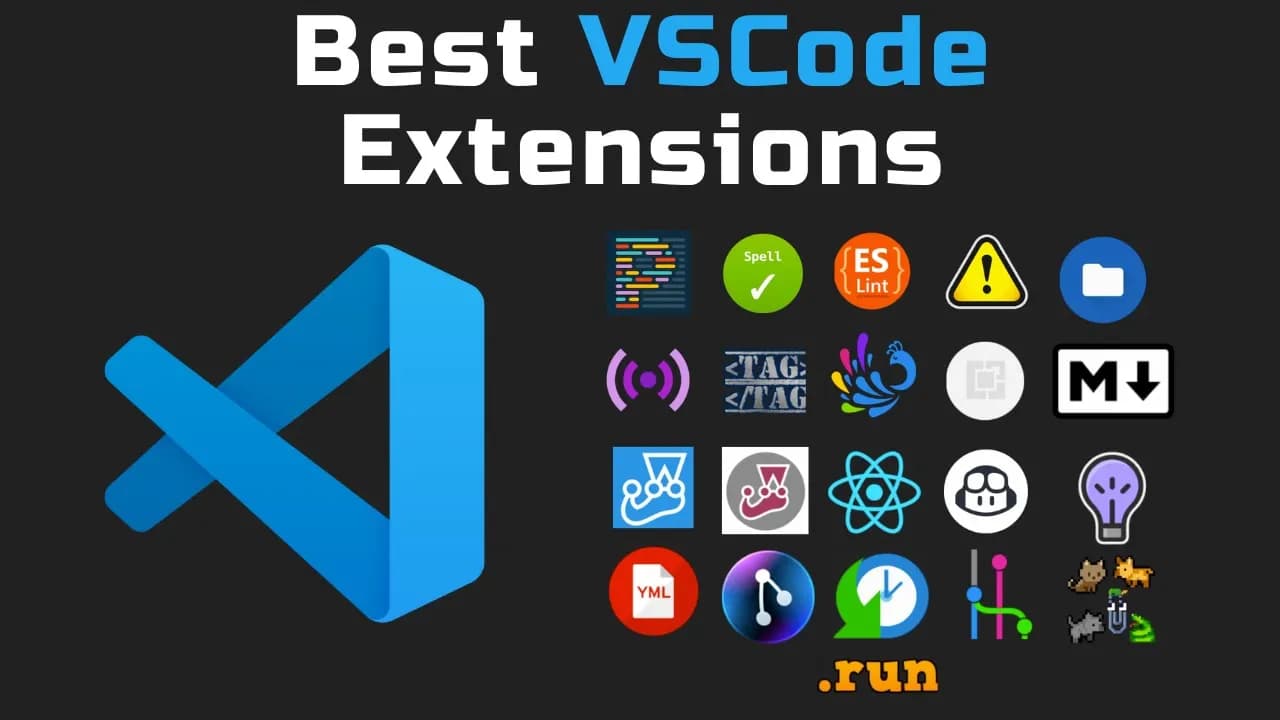
Prettier keeps formatting consistent on every save, Code Spell Checker catches typos in real code including camelCase, and ESLint calls out real JavaScript problems right in the editor. Error Lens makes those warnings impossible to miss by putting messages inline, while Material Icon Theme cleans up your Explorer so files and folders are easier to spot. Add Live Server for instant reloads, Auto Rename Tag for painless HTML edits, and a handful of Git helpers like GitLens, Git History, and Git Graph to see what changed and why. Set these up and your VS Code will feel faster, cleaner, and way less error-prone.
What Are The Best VS Code Extensions Right Now?
I tested a bunch and built a daily setup that covers formatting, spelling, linting, live preview, UI clarity, AI help, Git history, testing, and snippets.
These are the ones I keep installed because they make a real difference, not just look cool in a marketplace screenshot.
You’ll see quick demos, how I use them, and small details that make them click together nicely.
Why These Extensions Make Coding Faster And Cleaner
When you write code all day, the little stuff adds up. Extra spaces, missing semicolons, tiny typos in a variable name, or a missing closing tag can cost minutes here and there, and that stacks into hours over a week.
These extensions handle the boring, repetitive checks so you can focus on the logic and the build. They also remove the guesswork. You hit save and the format is right. You type a test and the status shows up inline. You commit and you can point to exactly which line changed, by who, and when.
Plus, they make your editor feel like a teammate instead of a blank text box. That’s the goal.
The Extensions I Actually Use, In The Order I Show Them
1) Prettier - Code Formatter
Prettier is an opinionated code formatter, and I have it set to format on save. That means I can write fast, mess up spacing, drop semicolons, and not think about where line breaks should go.
Picture the demo: I added a bunch of random spaces, removed semicolons, and dropped extra blank lines just to be dramatic. The moment I hit save, the file snapped into shape. Extra spaces gone, extra lines removed, semicolons back where they should be.
Consistency is the real win here. Files across a team look the same, PRs get smaller, and nobody argues about tabs vs spaces in code review.
Want to go deeper on install, config, and customizing rules? I’ve got a full Prettier video that walks through setup step by step.
2) Code Spell Checker
This one quietly prevents embarrassing typos from sneaking into a PR. It supports English and lots of other languages, and you can add custom dictionaries for project terms.
In my demo, I spelled Player wrong. The cool part is it understands camelCase, so it not only flagged Player in one place, it noticed Player in another place too. I clicked the light bulb, chose the right spelling, and both spots were fixed in one go.
It’s a tiny moment, but you feel the difference when you ship clean code without weird typos in your API names or component props.
If you need install and config details, I’ve got a video on that too.
3) ESLint
ESLint is a static analysis tool that finds real bugs and code smells in your JavaScript. The VS Code extension highlights problems live while you type, as long as ESLint is installed in the workspace or globally.
I showed a quick example where I accidentally put two dots in code. The editor underscored it in red and, when I hovered, it said Parsing Error Unexpected Token. That moment is exactly why this matters. You catch the error before it runs.
Pair this with a focused ruleset for your stack and your whole project gets safer line by line.
4) Error Lens
Error Lens is basically a visibility boost for your diagnostics. Instead of hiding messages behind a hover, it highlights the whole line and shows the error message inline.
With Error Lens enabled, ESLint rules show in red with the message on the right side. Spell check issues show in blue with their notes right there too. You don’t need to hover anywhere. You see the problem and the reason immediately.
It’s a small change that speeds up fix time because you’re not hunting for what went wrong.
5) Material Icon Theme
This swaps your Explorer icons for Material icons so your folders and files look cleaner and more informative. The default icon theme in VS Code is fine, but I don’t love the folders.
When I switched to Material Icon Theme, I got proper folders with color and shape differences that make scanning faster. It even adjusts based on folder names. In a React app with a components folder, you get bright, recognizable icons that help you spot what you need quickly.
It sounds cosmetic, but it cuts a split second off each time you glance at the tree. That adds up.
6) Live Server
Live Server spins up a local development server with live reload. It’s great for HTML, CSS, and JavaScript, and I use it a ton when I’m building small games or front-end demos.
Think of my Space Invaders example from a tutorial. I right clicked index.html and chose Open with Live Server. Then I changed some CSS, hit save, and the browser refreshed automatically. That loop makes iteration so much faster.
If you do front-end work, this is one of those no-brainer installs.
7) Auto Rename Tag
Have you ever changed an HTML tag and forgotten the closing side? Without this extension, if I rename a div to a span, I have to edit both tags by hand.
With Auto Rename Tag, when I change the opening tag from div to span, the closing tag updates automatically. It’s one of those features you wish was built in, and now it basically is.
Less fiddling, fewer mismatches, cleaner HTML. Done.
8) Peacock
If you usually have more than one project open in separate VS Code windows, it can get confusing. Which one is the API and which one is the front end? Peacock fixes that with color.
Open the Command Palette, type Peacock, and choose Change to a favorite color. Now that window gets a distinct color. Do it for each project. When I showed it, each window had a different color, so I could tell them apart at a glance.
It sounds simple, but when you’re hopping between repos all day, it keeps you sane.
9) Auto Open Markdown Preview
This one opens the Markdown preview automatically when you click a .md file. On the left you get the editor, and on the right you see the rendered preview.
It’s perfect for READMEs. You edit on the left, and the formatted version updates right away. No manual toggling, no extra steps.
Once you get used to it, you’ll wonder why it’s not the default behavior.
10) Markdown All in One
Markdown All in One adds shortcuts you’ll use constantly. You can bold text like you would in Word, italicize quickly, and even cycle through header levels using keyboard shortcuts.
I used it at the top of a doc to bounce through H1, H2, H3 without ever touching the mouse. It speeds up writing docs, changelogs, and any repo documentation.
The docs for this extension are solid too, with a big list of shortcuts and features you can plug into your flow.
11) Code Runner
Sometimes you just need to run a snippet. Code Runner adds a Play button that runs code for tons of languages, from C to a language called Zig. Yes, really Zig.
In my demo, I had a JavaScript file open. I hit the Play button at the top and watched the console output appear instantly. No extra terminal commands, no config, just run and see the result.
When you’re testing a small idea or debugging a tiny piece of logic, this saves a trip to your full build tooling.
12) Jest - Official Jest Extension
Testing with Jest gets a lot nicer with the official extension. Once installed, you’ll see a beaker icon on the left that opens a panel listing your tests and their status.
You can run all tests or run in Debug mode right from there. Inside your test files, each test gets a little status icon next to it. Click to run that test, or right click to choose Run Test or Debug Test.
If you live in Jest land, this turns VS Code into a proper testing cockpit.
13) Jest Runner
Jest Runner also runs Jest tests, but it focuses on convenience inside the file. It adds a Run and a Debug button above each test block, so you can trigger exactly what you need without leaving the editor.
I like having both installed. The official extension gives you a nice panel and global status, while Jest Runner makes per-test execution dead simple.
Use whichever fits your style, or keep both like I do.
14) Simple React Snippets
React developers, this one is a productivity boost right out of the box. The documentation lists a ton of snippets, and they map to the patterns you write every day.
For example, when I create a Header component, I type ffc which stands for function component syntax, then hit Tab. It drops in a template with two cursors so I can name the component in both spots at once. Hit Escape, drop in a div, and I’m already moving.
When repetition disappears, you move faster without thinking about boilerplate.
15) GitHub Copilot
GitHub Copilot is an AI pair programmer inside your editor. It suggests lines and even whole functions. It runs on a special model based on GPT-3 that’s trained on a huge amount of public source code.
I’ve used it and found it genuinely helpful, especially for tedious patterns or when I need a quick nudge on syntax. It’s not free anymore and does require a monthly subscription, so keep that in mind.
If you want the quick intro, I have a video that shows what it feels like to code with it turned on.
16) IntelliCode
IntelliCode is Microsoft’s AI assist for Python, TypeScript, JavaScript, and Java. Think of it as an upgraded IntelliSense that gives smarter suggestions by analyzing your code context.
It’s not as powerful as GitHub Copilot, but it is free, and it makes the built-in completion feel sharper. The suggestions feel more relevant to the file and the patterns you’re using.
If you want a bit of AI help without a subscription, this is an easy win.
17) YAML
If you write YAML in VS Code, install this immediately. You get YAML validation, auto completion, and schema support so you don’t accidentally break a config with a wrong indent or key.
YAML can be picky, and this extension keeps you from losing time to tiny spacing issues. I keep it installed on every machine.
It pays for itself the first time it saves you from a broken pipeline because of a misplaced space.
18) GitLens - Git Supercharged
GitLens adds a ton of Git features and overlays right inside VS Code. Most of the good stuff is free, and a few features require a plan.
The one I use constantly is Git Blame. On each line, it shows who last edited it and when. If you’ve ever asked who touched this and why, you’ll love that tiny note in the gutter.
I also like the extra tabs it adds under the Source Control view. You can look through commits, branches, remotes, stashes, and more without leaving the editor.
There’s also a graphical commit history view, but that feature requires a plan. If you want a free graph, the next two extensions are for you.
19) Git History
Git History gives you a graphical view of your commit history for free. Open the Source Control tab, click the little clock or history icon, and the graph pops up.
From there, you can create a new branch, add a tag, and perform other actions right from the graph. It gives you that birds-eye view of what happened and when, which is perfect for tracking merges or chasing down when a bug slipped in.
If you like seeing your repo as a timeline, this scratches the itch without a paid plan.
20) Git Graph
Git Graph is another visual history tool. You access it from the Source Control tab the same way. It shows a clean graphical representation of your Git history, with branches and commits laid out clearly.
Just like Git History, you can perform actions directly from the graph. I like keeping both around because sometimes one renders a layout that’s easier to read for a particular repo.
Try both and stick with the one that clicks for your brain.
21) VS Code Pets
This one is pure fun. VS Code Pets lets you have little pets living in your editor. After you install it, open the Explorer and you’ll see a Pets view on the left.
Click the plus, pick a pet, and it pops into your workspace. You can even throw a ball and watch them chase it. It adds a bit of joy to long coding sessions, and sometimes that’s exactly what you need.
Not every extension has to be serious to be worth it.
When To Use Each Extension And How They Play Together
Formatting and linting run on every save, so Prettier, ESLint, Error Lens, and Code Spell Checker are always on in my setup. They’re the guardrails you don’t think about after day one.
Material Icon Theme and Peacock make UI cues obvious. One makes the Explorer tree readable, the other makes multiple projects easy to tell apart. That visual clarity reduces mistakes when switching branches or repos.
Live Server, Markdown tools, and Code Runner come in when you’re writing docs or prototyping. They turn the editor into a quick sandbox, so you don’t bounce between tools.
For tests, the Jest extensions split into global control vs inline control. Use the beaker panel for big-picture runs, and the in-file Run and Debug buttons when you’re focused on a single test.
On the Git side, I use GitLens for blame and Source Control tabs, then Git History or Git Graph when I want a timeline view. If a feature is paywalled in one tool, the alternatives cover it for free.
Finally, AI helpers like Copilot and IntelliCode are there for suggestions. Copilot is stronger but paid. IntelliCode is lighter but free. Pick what fits your budget and your comfort level with AI in your editor.
Common Questions: Performance, Language Support, Free vs Paid
Will installing all these slow down VS Code?
VS Code handles this set comfortably on modern machines. If you feel lag, disable what you’re not using and re-enable it when needed. You can also use workspace-specific recommendations so big projects only load the extensions they need.
Do these extensions work for TypeScript and other languages?
Yes. Prettier, ESLint, Error Lens, and Code Spell Checker work great with TypeScript. IntelliCode helps with TypeScript too. YAML is for YAML, obviously. The Jest tools are for JavaScript and TypeScript test suites. Code Runner covers a ton of languages for quick snippets.
What’s free and what isn’t?
Most of these extensions are free. GitHub Copilot is subscription based. GitLens has a paid plan for some features like the commit graph, but the core features like blame and extra Source Control tabs are free. Git History and Git Graph are free alternatives for visual timelines.
How do I avoid extension conflicts?
Set Prettier as your default formatter and make sure ESLint and Prettier rules don’t fight. Use ESLint configs that are Prettier aware. If you have multiple test extensions, set the one you use most as the default test adapter, and keep both if you like their different UIs.
Quick Install And Setup Flow
Here’s a fast way to get the whole setup running without going down a settings rabbit hole.
- Install Prettier, set it as Default Formatter, and enable Format On Save.
- Add ESLint and let it auto-fix on save. Use a Prettier compatible ESLint config.
- Install Error Lens and Code Spell Checker for instant visibility and typo control.
- Switch to Material Icon Theme and pick a Peacock color for each open project.
- For front-end work, add Live Server. For docs, add Auto Open Markdown Preview and Markdown All in One.
- For quick experiments, install Code Runner so you can run snippets with one click.
- If you use Jest, install both the Jest extension and Jest Runner for full control.
- React devs, add Simple React Snippets to cut boilerplate.
- Try IntelliCode, and if you want deeper AI help, consider GitHub Copilot.
- If you touch YAML, install the YAML extension for validation and autocomplete.
- On the Git side, add GitLens, then Git History or Git Graph for visual timelines.
- Optional but fun: install VS Code Pets and add a buddy to your workspace.
Real-World Workflow: From First Line To Commit
Open a new project and set a Peacock color so you don’t mix it up with other windows. Switch to Material Icon Theme and scan the Explorer. Files and folders pop visually, so you’re in the right place fast.
Start coding with Prettier and ESLint running on save, Error Lens making issues obvious, and Code Spell Checker quietly catching typos. When you need a quick browser run, right click index.html and use Live Server.
Writing docs? Click README.md and the preview opens on the right. Use Markdown All in One shortcuts to bold, italicize, and bounce between headers with your keyboard.
Test time. Use the Jest panel to see all tests and the in-file buttons to run one test in isolation. Iterate quickly with inline status and debug mode when needed.
Before you push, peek at blame in GitLens to understand who changed what. If you want a graph view, flip open Git History or Git Graph and track your branches. Tag a release if you need it, straight from the graph view.
And if the day’s long, throw a ball to your VS Code pet and watch it chase it while your tests run. You earned it.
Conclusion: Your Turn - What Did I Miss?
There are so many amazing VS Code extensions out there, but these are the ones I keep coming back to because they actually improve my day to day.
From format-on-save with Prettier to inline messages with Error Lens, from the speed of Live Server to the clarity of GitLens and a clean commit graph, this stack keeps me moving and keeps mistakes out of pull requests.
Tell me your favorites in the comments. If this helped, smash the like button, subscribe, and hit the notification bell so you don’t miss the next deep dive. And if you want more details on setup for specific tools like Prettier, Code Spell Checker, or GitHub Copilot, I’ve got videos linked that walk through everything.